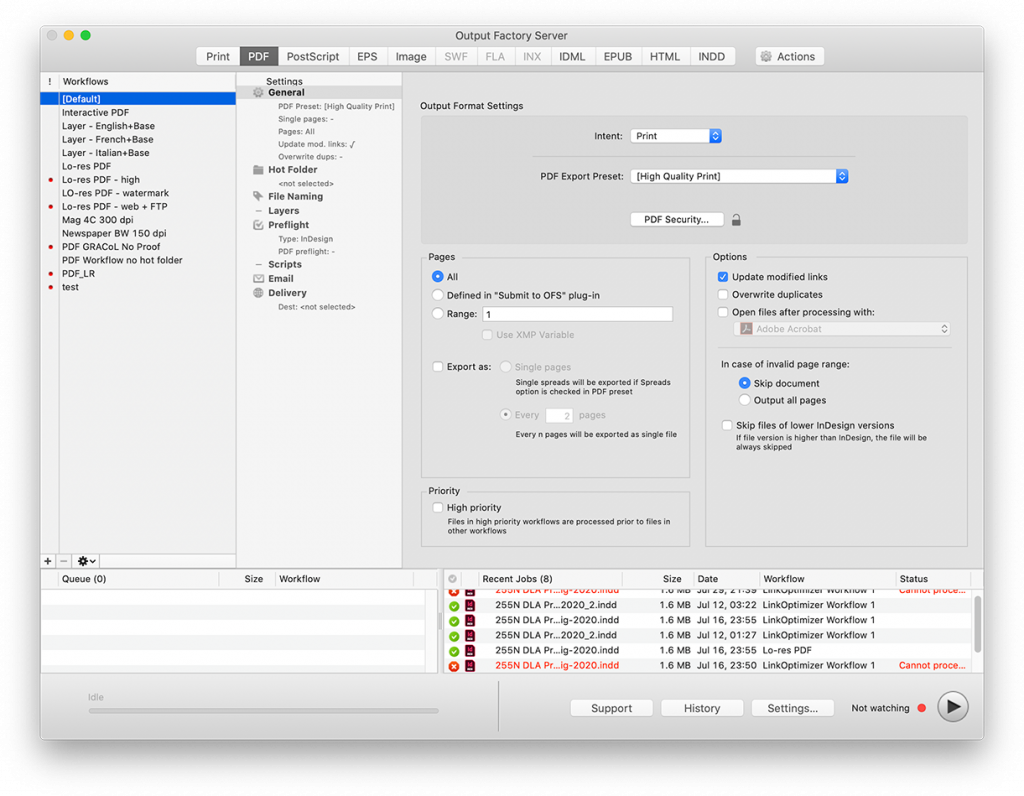
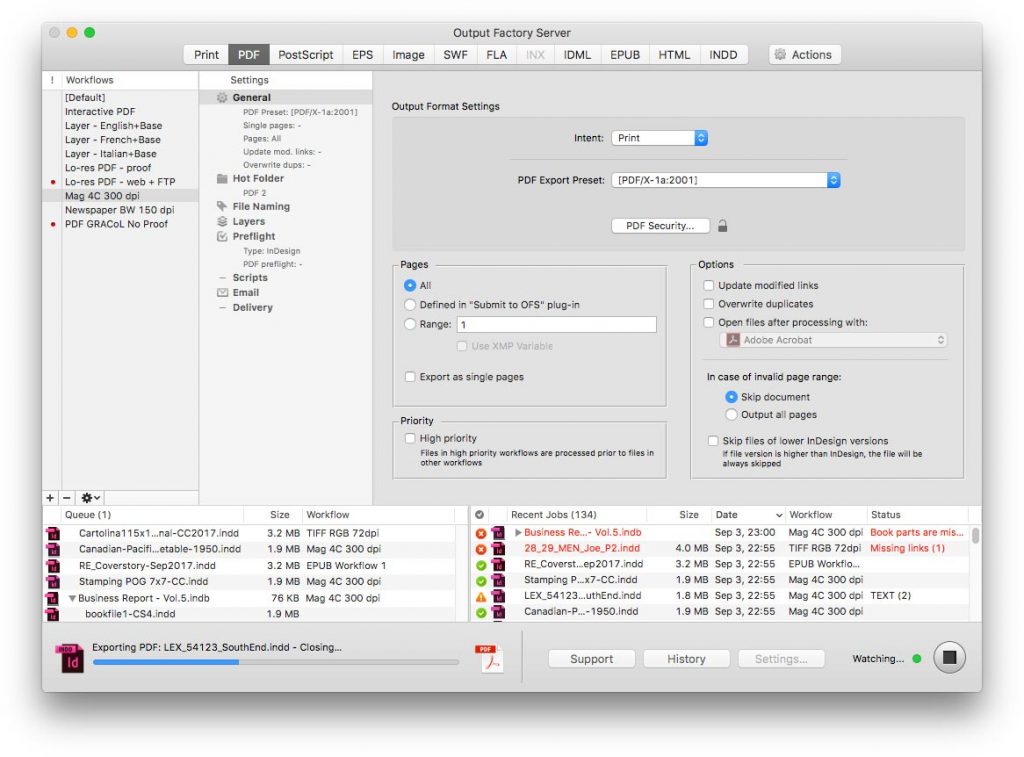
Print and export InDesign files automatically from watched hot folders. Output Factory Server can serve unlimited users on a network.
Create hot folders for various workflows such as hi-res PDF, laser printer, EPUB, LinkOptimizer etc. Users can submit single files, books, and collected jobs.
Combine LinkOptimizer processing with other formats. For example, process file with LinkOptimizer and then export the optimized file to PDF seamlessly from a single hot folder.
Time-saving output options
Export InDesign documents as single pages or every n pages. Update links automatically. Open files with selected app after processing. These are only a few of available options to streamline and simplify your everyday production workflow
All the formats you need
Output Factory supports printing and exporting to PDF, PostScript, EPS, IDML, HTML, EPUB, INDD, TIFF and other image formats.
Email Notifications
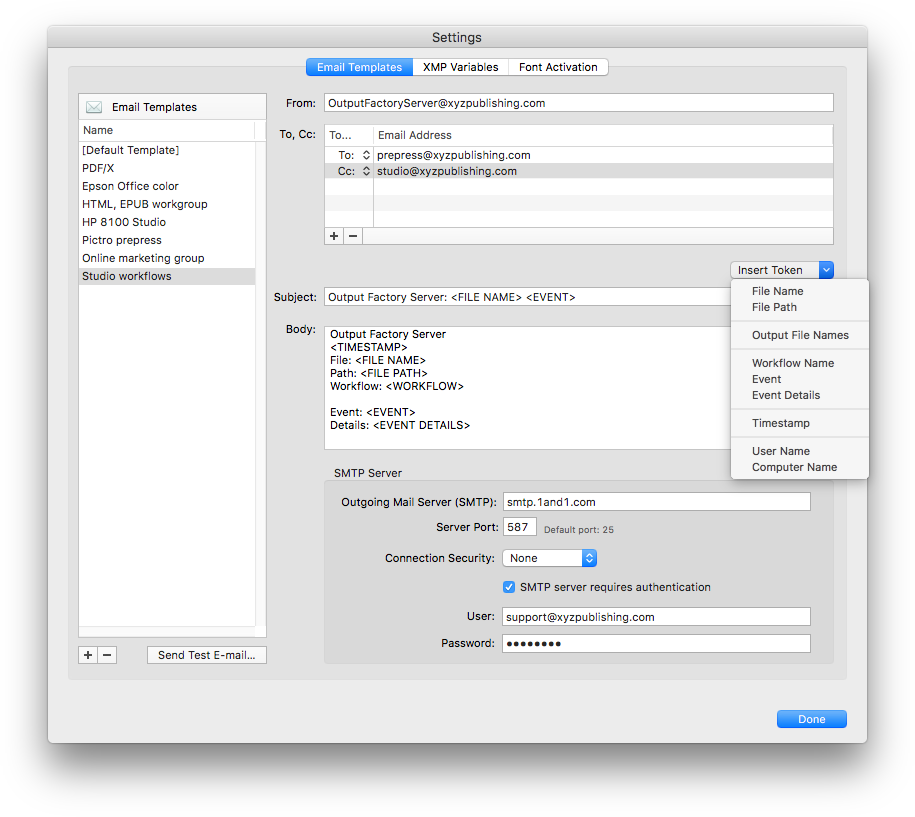
Output Factory Server can send automatic email notifications based on powerful variable templates. Notifications can be triggered by errors and other events.
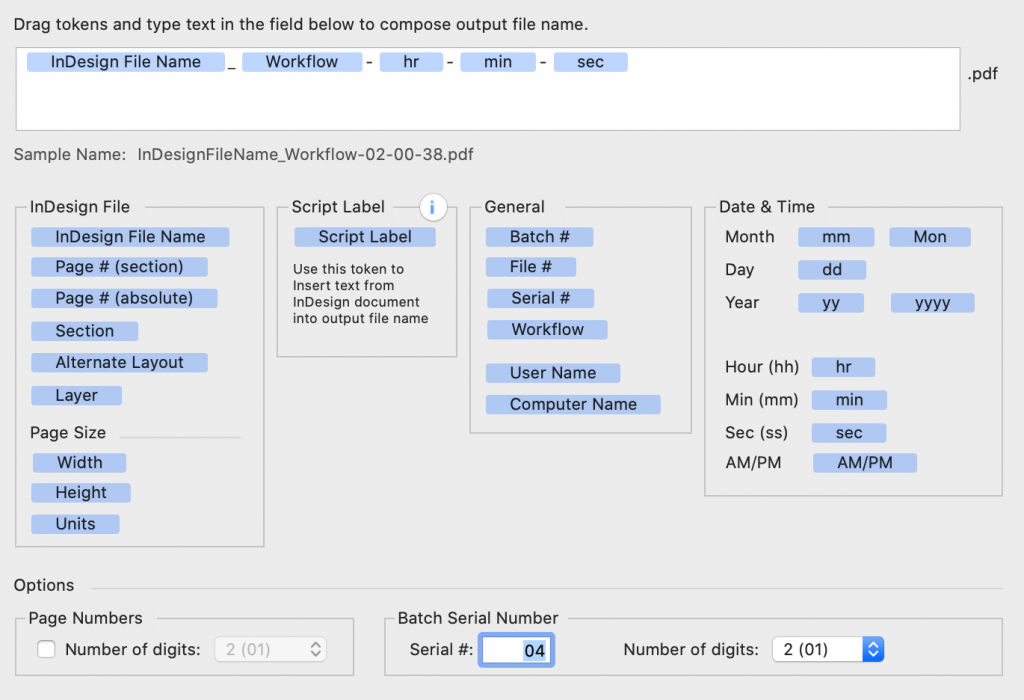
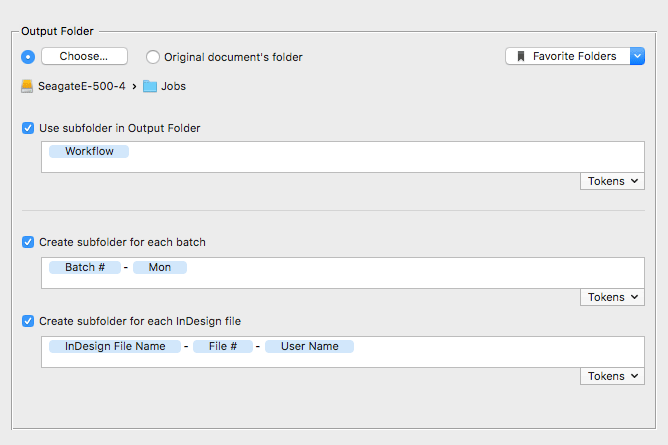
Output Factory offers unmatched abilities to create variable output file names based on page number, layers, date and other attributes. You can even insert text from your documents using the script label variable.
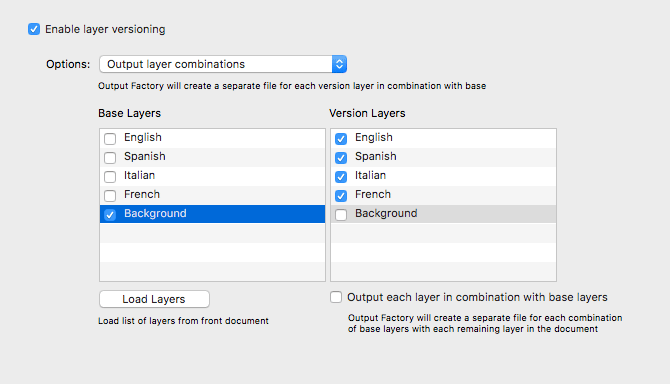
Layer Versioning
Output InDesign layers and their combinations as separate files automatically – an indispensable feature for multilingual documents and other projects with layered content.
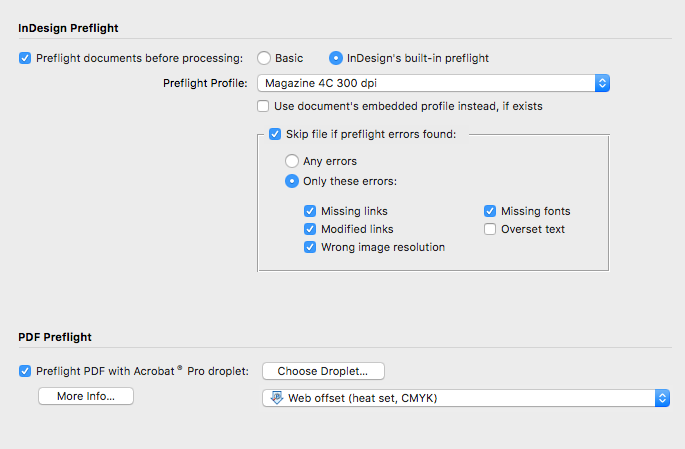
Preflight errors caught
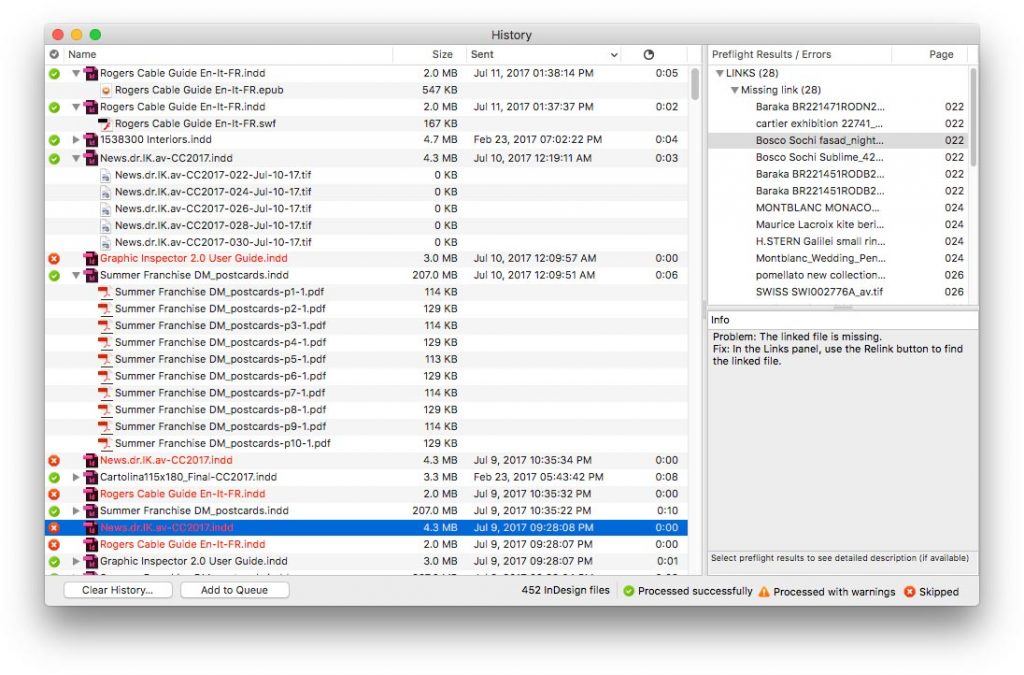
With Output Factory, output errors are a thing of the past. Thoroughly check files using InDesign’s preflight or Output Factory’s own options, and skip files with errors. Review errors in the History with their detailed description.
Layer Versioning
Output InDesign layers and their combinations as separate files automatically – an indispensable feature for multilingual documents and other projects with layered content.
Preflight
With Output Factory, output errors are a thing of the past. Thoroughly check files using InDesign’s preflight or Output Factory’s own options, and skip files with errors. Review errors in the History with their detailed description.
layer versioning
Errors get caught before they become a client email
With Output Factory, output errors are a thing of the past. Thoroughly check files using InDesign’s preflight or Output Factory’s own options, and skip files with errors. Review errors in the History with their detailed description.
preflight
Errors get caught before they become a client email
With Output Factory, output errors are a thing of the past. Thoroughly check files using InDesign’s preflight or Output Factory’s own options, and skip files with errors. Review errors in the History with their detailed description.
preflight
Errors get caught before they become a client email
With Output Factory, output errors are a thing of the past. Thoroughly check files using InDesign’s preflight or Output Factory’s own options, and skip files with errors. Review errors in the History with their detailed description.
variable file names
Name files the way your workflow actually needs them named
With Output Factory, output errors are a thing of the past. Thoroughly check files using InDesign’s preflight or Output Factory’s own options, and skip files with errors. Review errors in the History with their detailed description.
Preflight
With Output Factory, output errors are a thing of the past. Thoroughly check files using InDesign’s preflight or Output Factory’s own options, and skip files with errors. Review errors in the History with their detailed description.
Easily manage output files by saving them in dynamically created subfolder tree with variable names.
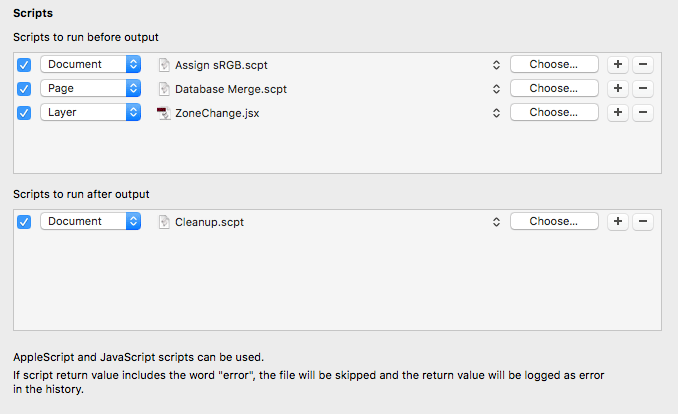
custom scripts
Custom Scripts
Run custom AppleScript and JavaScript scripts during processing. This new feature offers virtually unlimited possibilities to customize and further automate your workflows.
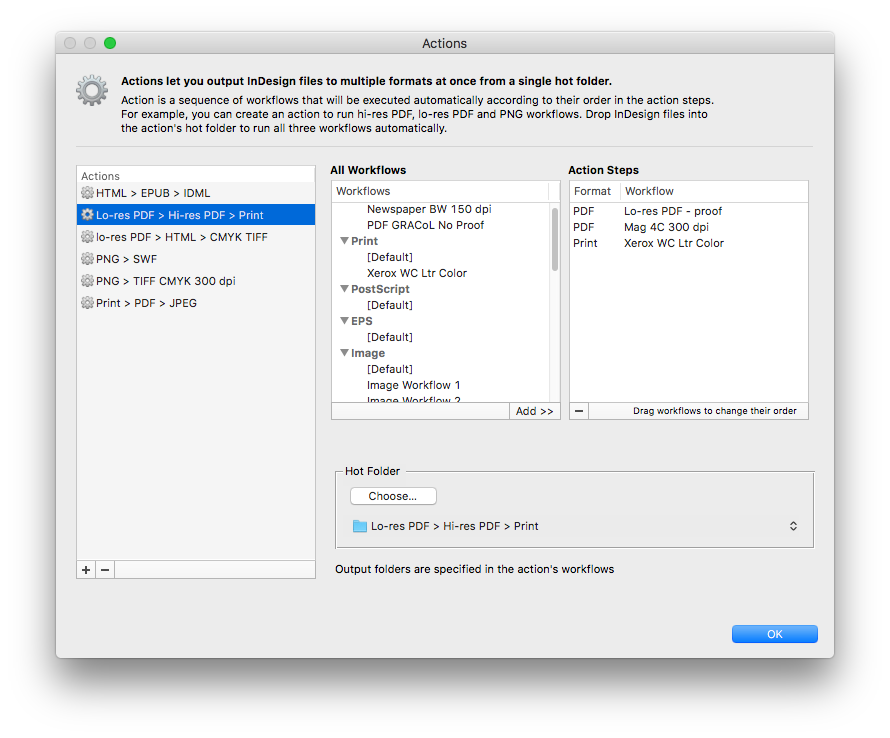
Output to multiple formats
from a single hot folder
Create sequences of workflows to output InDesign files to multiple formats at once. For example, create an action to export files as hi-res PDF, lo-res PDF, and send them to a laser printer – all with just a click of a button.
History
You can rely on Output Factory to track InDesign documents you sent to output along with the error log and the list of output files.
"Output Factory Server is an extremely useful utility for a busy production facility or advertising agency. It can save lots of time - which equates to money."
David Creamer
Adobe Layers Magazine
“I want to say how valuable and useful Output Factory has been for our company. The folks that use it are delighted to have a way to automate so much repetitive work in a consistent and organized way.”
“When every second counts Output Factory is a life saver! It’s a sublime beast that saves a lot of time. I just drag my files into the job list, set them up as I want and then sit back and watch the computer do its stuff.”
“Output Factory has been the single biggest time-saver I’ve encountered in ten years of print production. Easily saves hours a week, producing bullet-proof documents over and over… With the reduction in head count and efficiency savings, it must have paid for itself 500 times over.”
“Output Factory is now a tool in our arsenal we couldn’t do without. Within the first day of use we realized its potential and have incorporated it into several of our workflows. Great product!”
Previous
Next
FULL VERSION
Output Factory
$
99.95
9588
All output formats — PDF, EPS, IDML, HTML, EPUB, TIFF & more
LinkOptimizer can currently experience problems on macOS 27 due to certain bugs introduced by Apple. We expect to address this by the end of September. Please check this page or use the Check for Updates menu in LinkOptimizer for updates. With any questions, please contact us.
Additional details:
Please note that InDesign as well as other Adobe products are current do not officially support macOS 27 Golden Gate. As with any major macOS upgrade, it may take several months until it’s ready for real-world production workflows. We recommend to use macOS 27 installations for testing only.
You can install macOS 27 alongside another macOS version on the same machine by installing it on a separate volume of your hard drive, which can be created using Disk Utility.