
LinkOptimizer
for Adobe InDesign
Automate InDesign link preparation for perfect results
Reduce link size • Optimize resolution • Convert colors • Convert formats and much more…
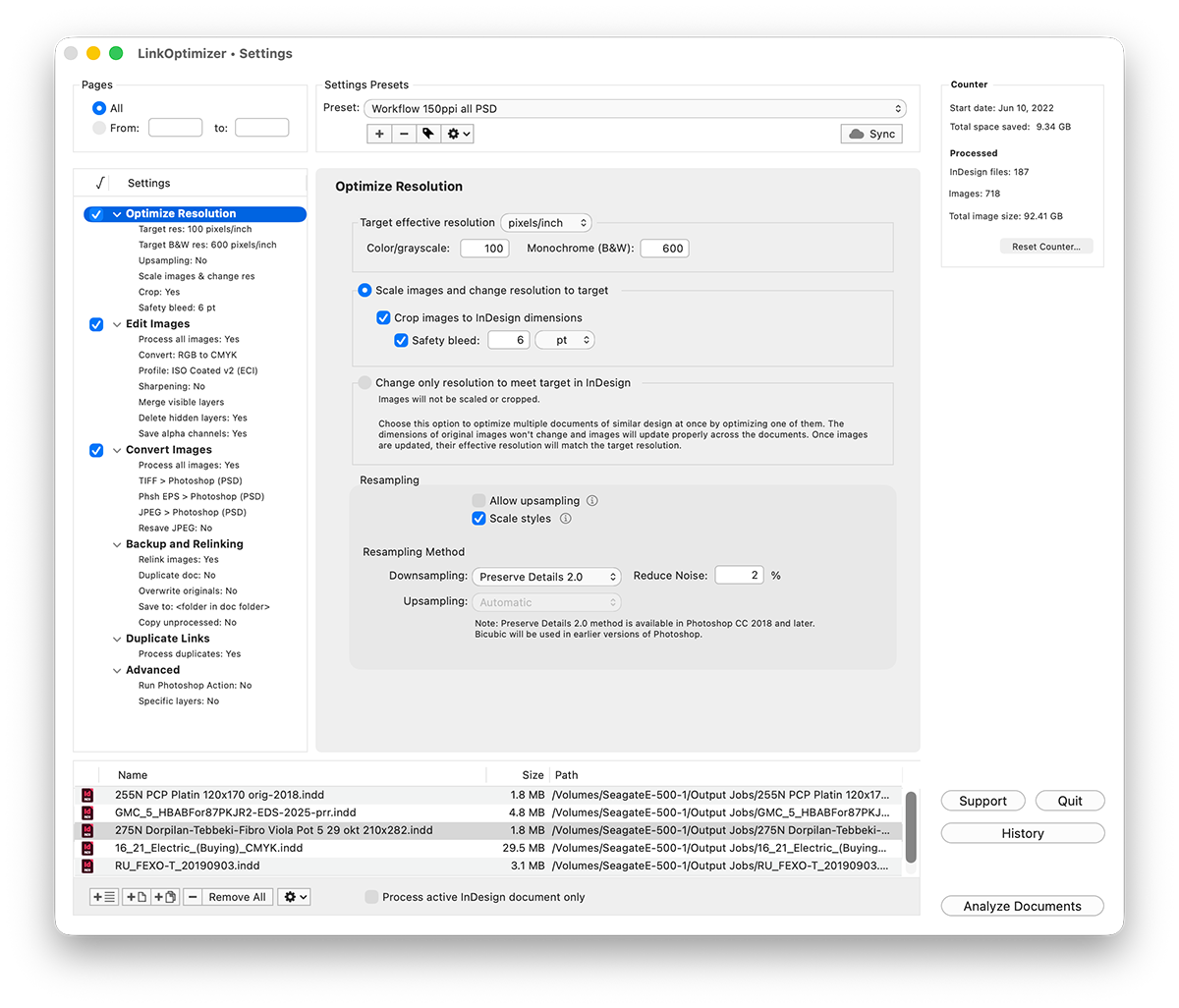

Adobe InDesign CS6 – 2026

macOS 10.12 – 27 (Golden Gate)
LinkOptimizer is now fully compatible with macOS Golden Gate as of September 19, 2026.
(LinkOptimizer 7.0.10 and later.)
new version
New in LinkOptimizer 7:
- Automatic collection of all document links.
Unprocessed links can now be collected into the same folder as optimized links and relinked — so after processing, you end up with a single folder containing all document links.
- Unified naming convention for all links.
Renaming options can now apply to unprocessed links too, so every file follows the same naming convention after processing.
- Link list management controls.
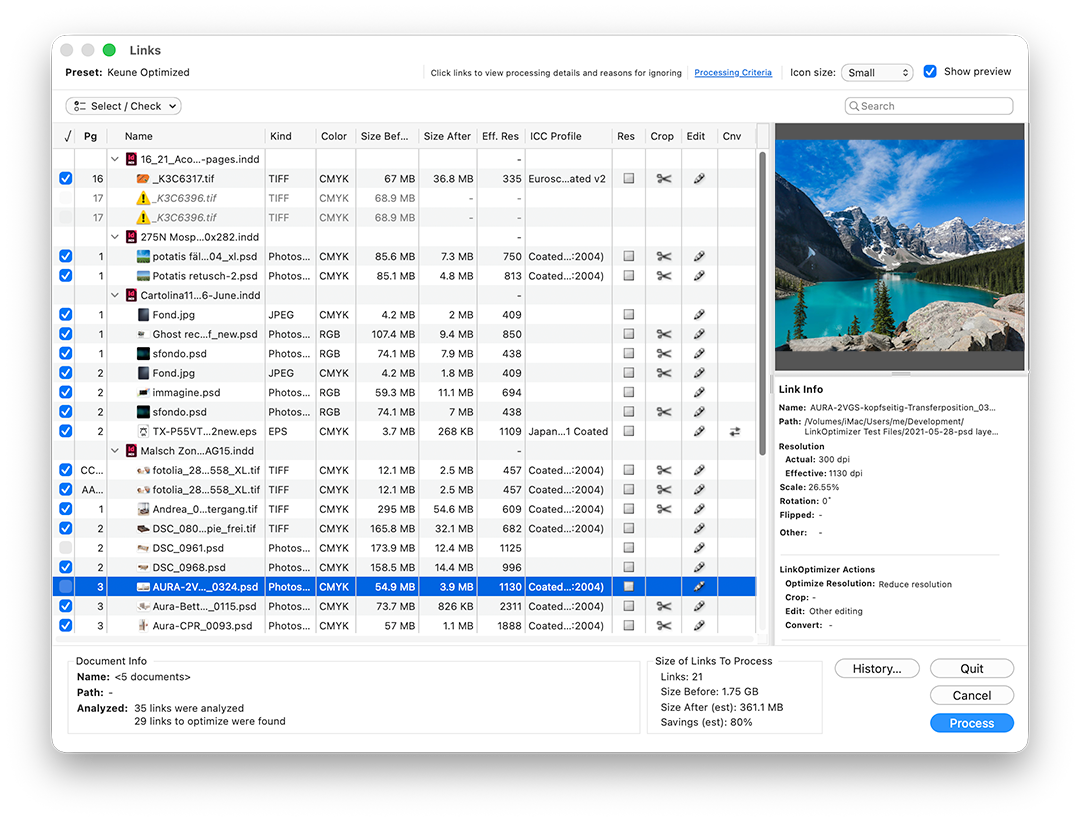
A new popup lets you check, uncheck, or invert your link selection helping fine-tune which links get processed.
- Convert and optimize WebP images.
WebP links can now be processed and converted to different formats.
- Streamlined UI for Duplicate Links settings.
Duplicate Links settings now have their own dedicated panel, making them easier to view and configure.
- Numerous enhancements.
Italic font for ignored links for easier recognition; a warning dialog before deleting presets; info popovers for control descriptions; plus under-the-hood improvements for faster processing.
It’s the first paid LinkOptimizer upgrade in over five years. Upgrading also ensures access to new features and improvements that will continue to be added in free updates.
LinkOptimizer 7: InDesign CS6 – 2026 | macOS 10.12 – 27 + support for forthcoming updates; Silicon-native.
LinkOptimizer 6: InDesign CS6 – 2026 | macOS 10.12 – 26 [Tahoe] Will not support later versions.
LinkOptimizer 5: InDesign CS6 – 2021 | macOS 10.9 – 11 [Big Sur]
To use with recent InDesign/macOS versions, upgrade to LinkOptimizer 7

Optimizing, resizing, and replacing InDesign image links can take hours—or even days—when done manually. LinkOptimizer does it in a fraction of the time, freeing you from tedious, repetitive work.
LinkOptimizer will perform these key operations for you:
- Reduce links size and optimize resolution by eliminating unnecessary image data
- Convert link color, sharpen and make other adjustments
- Convert image formats to meet your output requirements
Please see below for more info and for many additional capabilities of LinkOptimizer.
Reduce link size,
optimize resolution
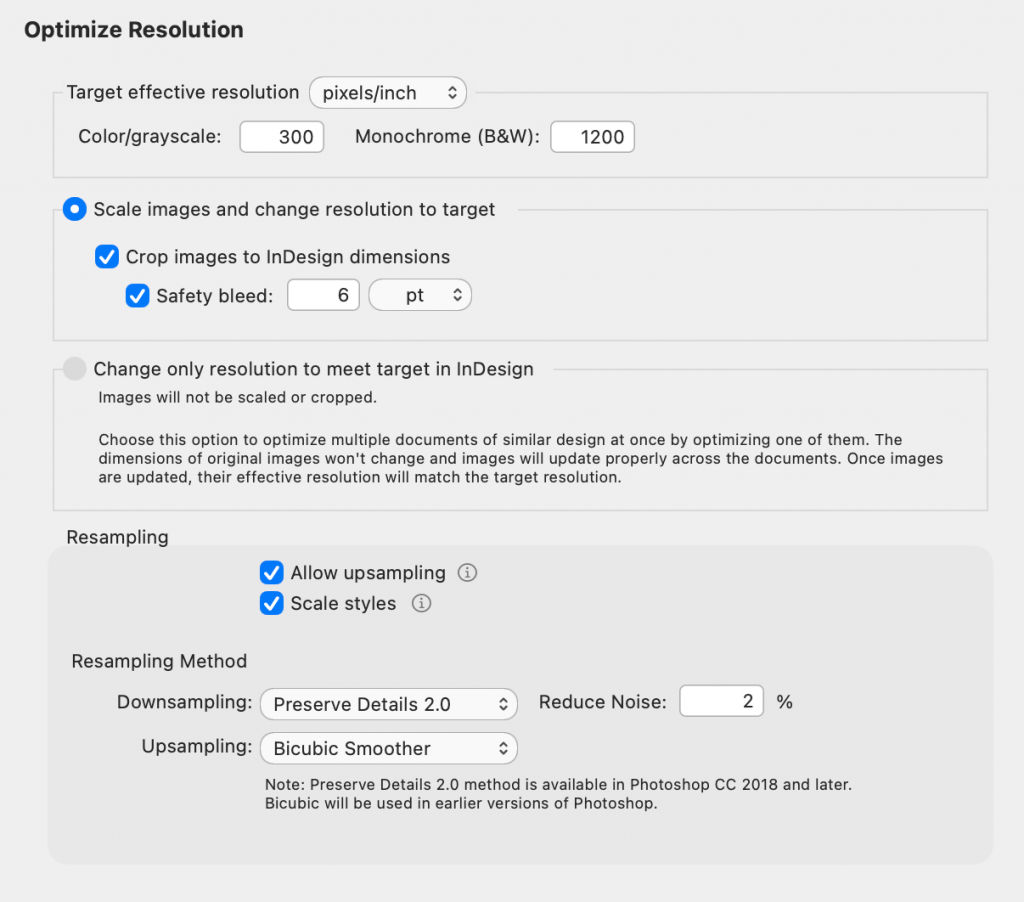
LinkOptimizer automatically eliminates excess image resolution by scaling, cropping, and downsizing links in Photoshop to match their exact InDesign dimensions and your target resolution. Optimized images are then reimported into InDesign at 100% scale.
This can result in a dramatic reduction in image file size, particularly valuable as the cost of high-capacity storage continues to increase.
Convert colors and more
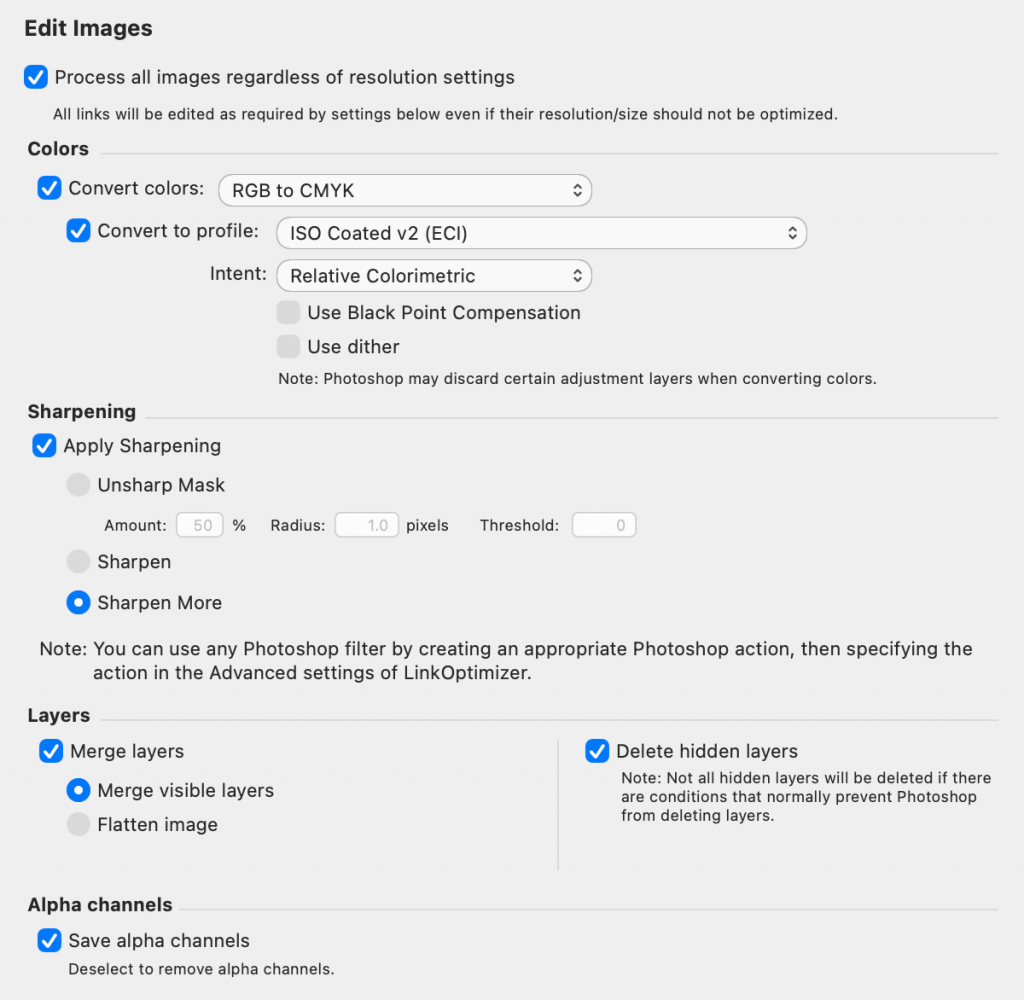
Automatically perform image adjustments:
-convert colors to CMYK, RGB and Grayscale
-assign ICC profile
-apply sharpening filters
-merge layers, flatten image, delete hidden layers, and more
Convert image formats
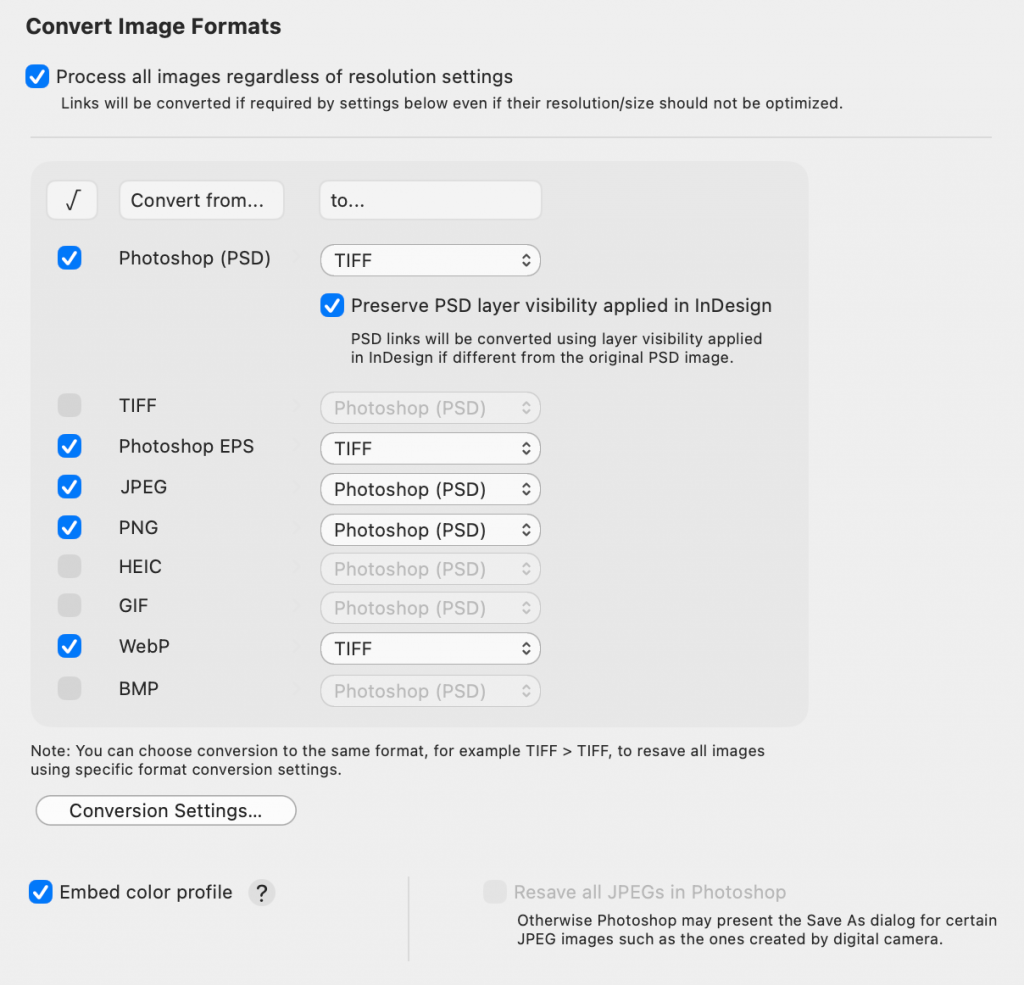
Automatically convert linked images into preferred formats (e.g., JPEG to TIFF, PNG to PSD) using customizable conversion settings.
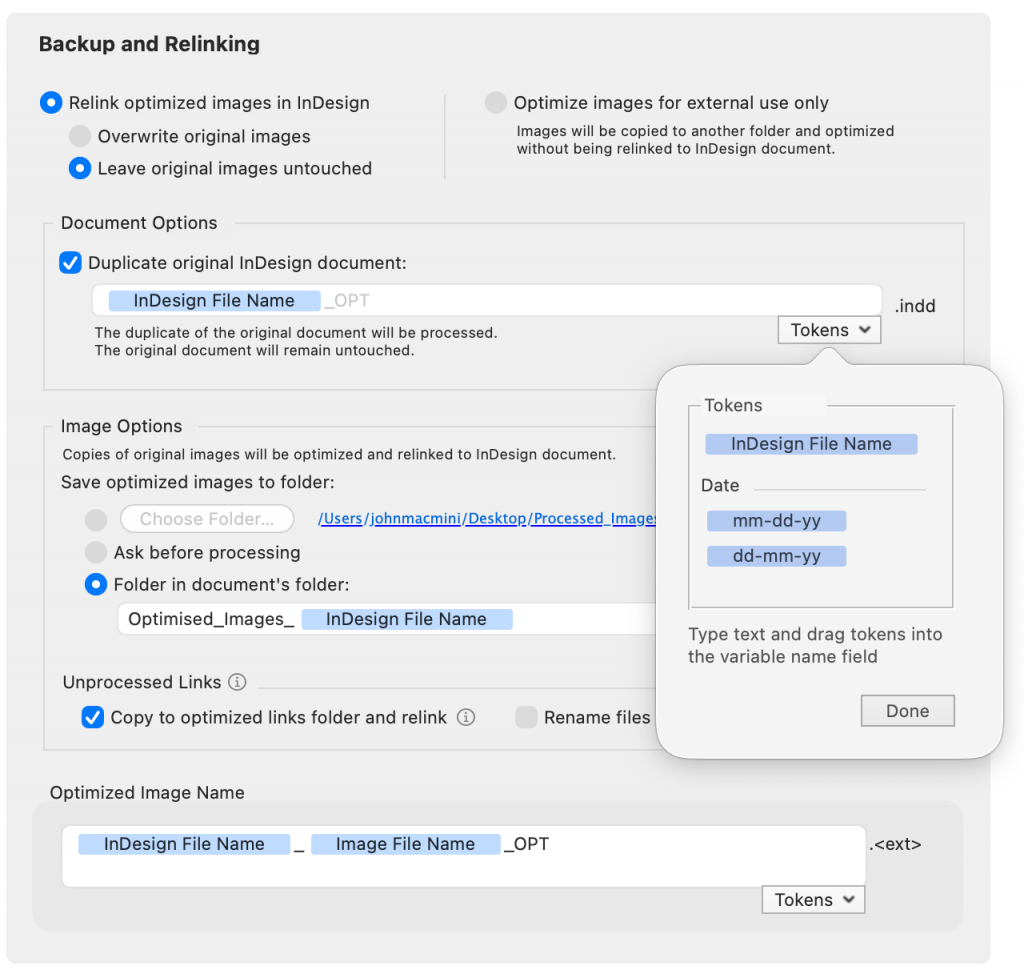
Backup and rename images
With LinkOptimizer, your files are always safe: you can either backup original images, or work with their copies. You can also optimize links for external use, such as web design, without relinking them back to InDesign at all.
Run Photoshop Actions
Run selected Photoshop Actions on each image during processing.
Batch processing
Process multiple InDesign files and books with one click.
Detailed link info
Get total control over links before optimization. LinkOptimizer analyzes InDesign files to show detailed image info, exact processing actions, and estimated file size savings before launching the process.
FULL VERSION
LinkOptimizer
One-time payment
- Optimize image size & resolution
- Convert colors
- Perform essential Photoshop adjustments
- Rename links
- Convert image formats
- Backup original links
- Run Photoshop actions
Upgrade LinkOptimizer Lite to full:
